Involved Party Notice
The Involved Party Notice step is the third step in the workflow for any incident involved party for which a hearing is applicable.
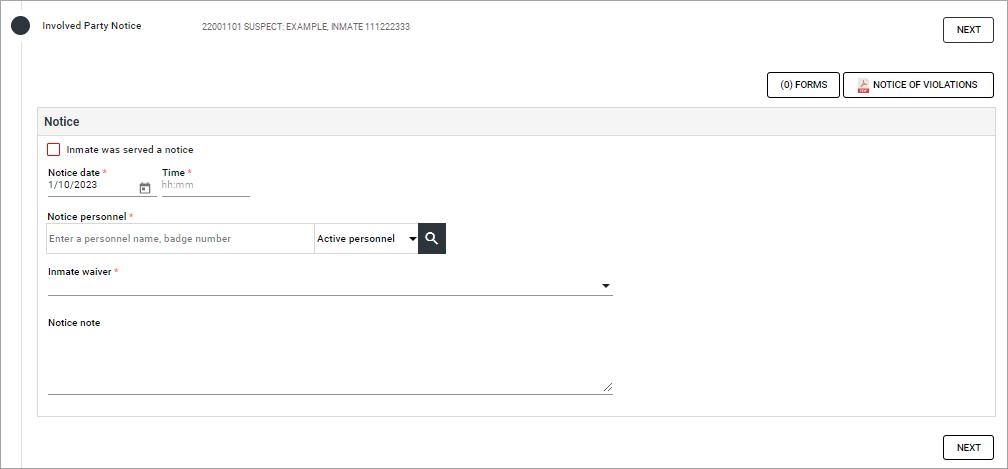
Enter Notice Details
-
Click Notice of Violations to generate a PDF notice for distribution to the inmate. The Notice includes the incident details, the inmate's alleged violations, and the inmate's options in proceeding with a hearing.
-
Select the Inmate was served a notice check box to confirm delivery of the notice to the inmate.
-
Select or enter a Notice Date.
-
Enter the Time the notice was provided.
-
Search for and select Notice Personnel to document the person responsible for delivering the notice to the inmate.
-
Select an Inmate Waiver value as indicated by the inmate. Default values and behaviors are as follows:
-
I do not want a disciplinary hearing and do not contest the charges
If this option is selected, the hearing steps are skipped and the process advances to the Sanctions step.
-
I waive the 24 hour prior notice rule and request an immediate hearing
If this option is selected, the hearing can be held immediately upon completion of the Notice step.
-
I do not waive the 24-hour rule
If this option is selected, the hearing cannot be held until 24 hours after the Notice is provided.
Waiver text and behavior are configurable by the agency.
-
-
(optional) Enter a Notice Note to provide additional information regarding the notice or notice process.
-
Click Next to save the notice information and advance to the next step in the Involved Party workflow.
Other Actions
-
Click (n) Forms to view existing and select and complete Incident forms. The button displays a count of existing forms.
-
Click Notice of Violations to generate the Notice of Violations PDF. If it is generated after notice information is saved it will include information like the selected Waiver.